

 Apps
 12 fixes
Quick answer: what to do first
If your WhatsApp backup isn't working, won't finish or gets stuck, do this in order:
- Connect to stable Wi-Fi and keep your phone charging.
- Check your cloud storage: Google Account (Android) or iCloud (iPhone). Without space, the backup fails.
- Turn off "Include videos in chats" to make the backup smaller.
- Restart your phone and update WhatsApp.
- Open Settings › Chats › Chat backup and tap Back up.
Lost chats? Don't create a new backup, don't delete the backup and don't factory reset your phone. A new backup replaces the old one, and the chats are gone for good. Go straight to can't restore.
What's your case? Find the right fix
A WhatsApp backup can fail for different reasons. Pick what's happening to you:
How to tell if your WhatsApp backup is working
Open WhatsApp and go to Settings › Chats › Chat backup (on Android, Settings is in the ⋮ menu). It shows the date and size of the last backup.
- Today's or yesterday's date: the backup is working.
- A date from weeks ago: automatic backup has stopped. Follow the fixes below.
- No date: there has never been a cloud backup. Turn it on in Back up to Google (Android) or Auto backup (iPhone).
According to the WhatsApp Help Center, chats aren't stored on WhatsApp's servers. There's only one backup per phone number (Google) or per iCloud account, and each new backup replaces the previous one.
Android: Google backup not working
 Android: Google backup not working
On Android, the backup goes to your Google Account. Follow the steps in order and try Back up after each one.
1Use stable Wi-Fi (or allow mobile data)
Use when: you see "Waiting for Wi-Fi" or the backup won't even start.
- Connect to a Wi-Fi network that works well. Open a website to test it.
- Turn Wi-Fi off and on, or switch networks. Work, school and hotel networks often block large uploads.
- No Wi-Fi? Turn on Back up over mobile data on the backup screen. Note: the backup can use several GB of your plan.
Connected to Wi-Fi but no internet? See Wi-Fi connected but no internet.
2Free up space in your Google Account
Use when: you see "Backup failed: You need more storage".
The WhatsApp backup uses your Google Account storage. That space (15 GB on the free plan) is shared with Gmail and Google Photos. If the account is full, the backup won't finish.
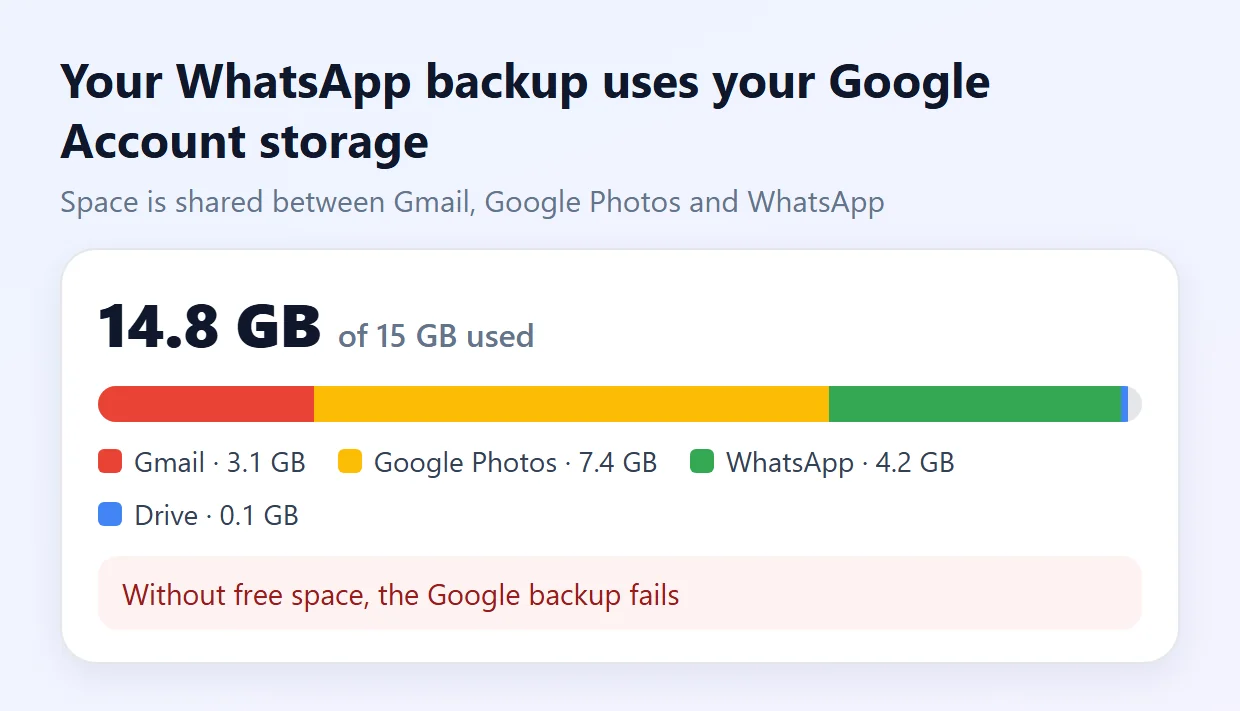
- Check how much space is left at one.google.com/storage (or in the Google Drive app, menu › Storage).
- Delete emails with large attachments and empty the Gmail trash.
- Remove duplicate photos and videos from Google Photos and empty the trash.
- If you can't free up enough, make the backup smaller (step 3) or buy more storage.
3Make the backup smaller
Use when: the backup is large (several GB), takes too long or doesn't fit in the cloud.
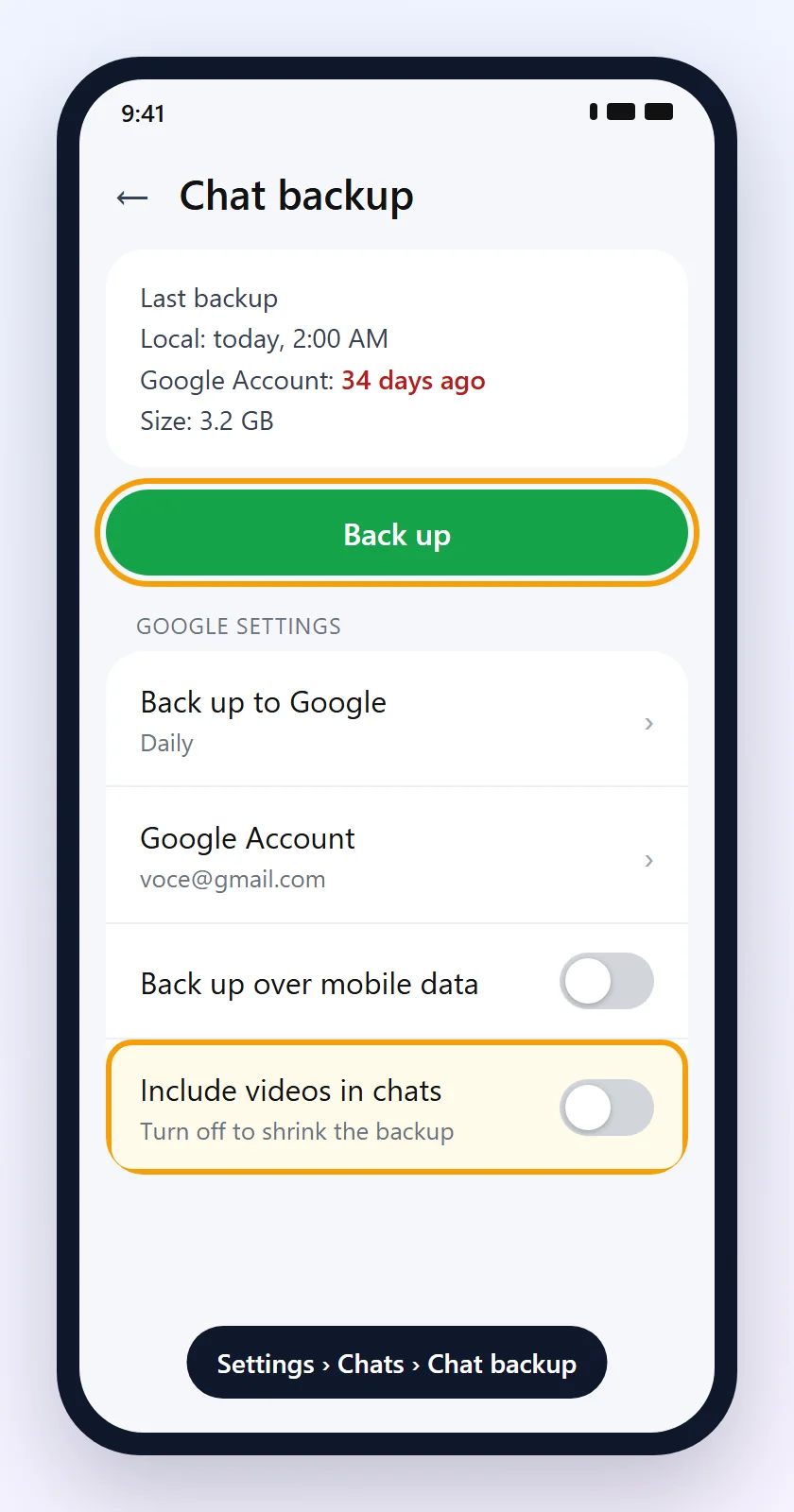
- On the Chat backup screen, turn off Include videos in chats. Videos are most of the backup.
- Go to Settings › Storage and data › Manage storage and delete large and frequently forwarded files.
- Delete media from groups you don't need to keep.
4Fix your Google Account
Use when: you get an account error, a permission request or the backup goes to the wrong account.
- On the backup screen, check under Google Account that it's the right account. To change it, tap it and choose another one (or Add account).
- Make sure WhatsApp's Photos and videos permission is set to Allow in Settings › Apps › WhatsApp › Permissions.
- Sync the account: Settings › Accounts (or "Passwords & accounts") › your account › Sync account › menu › Sync now.
- If that doesn't help, tap Remove account, open WhatsApp and add the account again from the backup screen.
- Update Google Play services: Settings › Apps › Google Play services › App details in store › Update.
5Backup stuck at a percentage
Use when: the bar stops at 0%, 37%, 99% or any value for a long time.
These are WhatsApp's official tips for a stuck backup. Try one at a time:
- Restart your phone and try again.
- Keep the phone charging during the backup.
- Force stop WhatsApp: Settings › Apps › WhatsApp › Force stop.
- Log out of your Google Account and back in (step 4).
- Switch networks or use mobile data.
- Make the backup smaller (step 3).
- On dual-SIM phones, the SIM for your WhatsApp number must be active.
Reached 100% but the notice won't go away? The upload continues in the background. Wait a few hours with the phone on Wi-Fi and charging.
iPhone: iCloud backup not working
 iPhone: iCloud backup not working
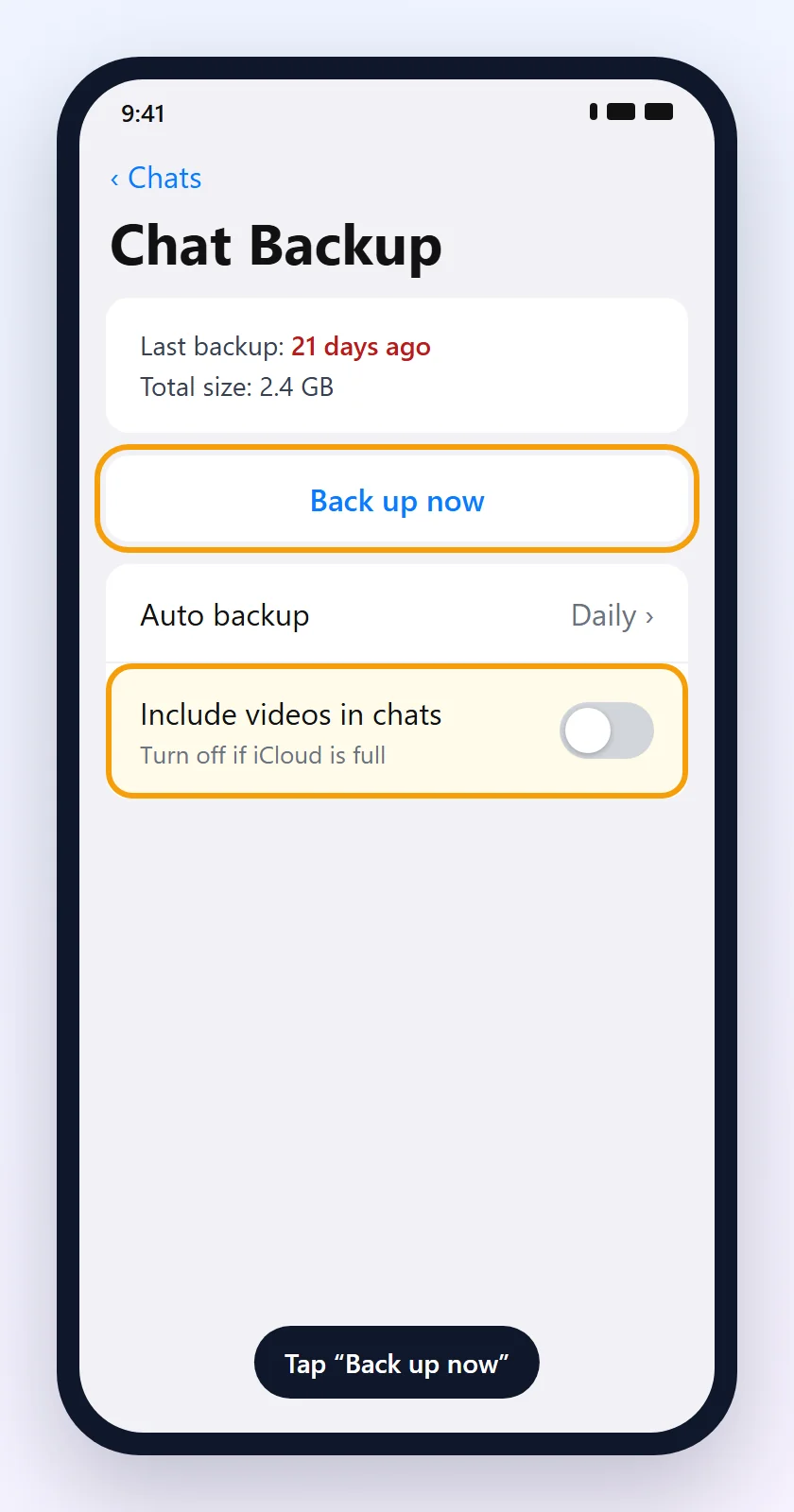
On iPhone, the backup goes to your Apple account's iCloud. The path in WhatsApp is Settings › Chats › Chat Backup › Back up now.
6Free up iCloud storage
Use when: you get a storage warning or the backup stops halfway.
- Open Settings › [your name] › iCloud and check the free space. The free plan has only 5 GB.
- Tap Manage Storage and delete old backups from other devices or data from apps you don't use.
- Turn off Include videos in chats in WhatsApp to make the backup smaller.
- Your iPhone also needs free space to create the backup. See iPhone out of storage.
7Turn on iCloud Drive for WhatsApp
Use when: the backup won't start or fails right away.
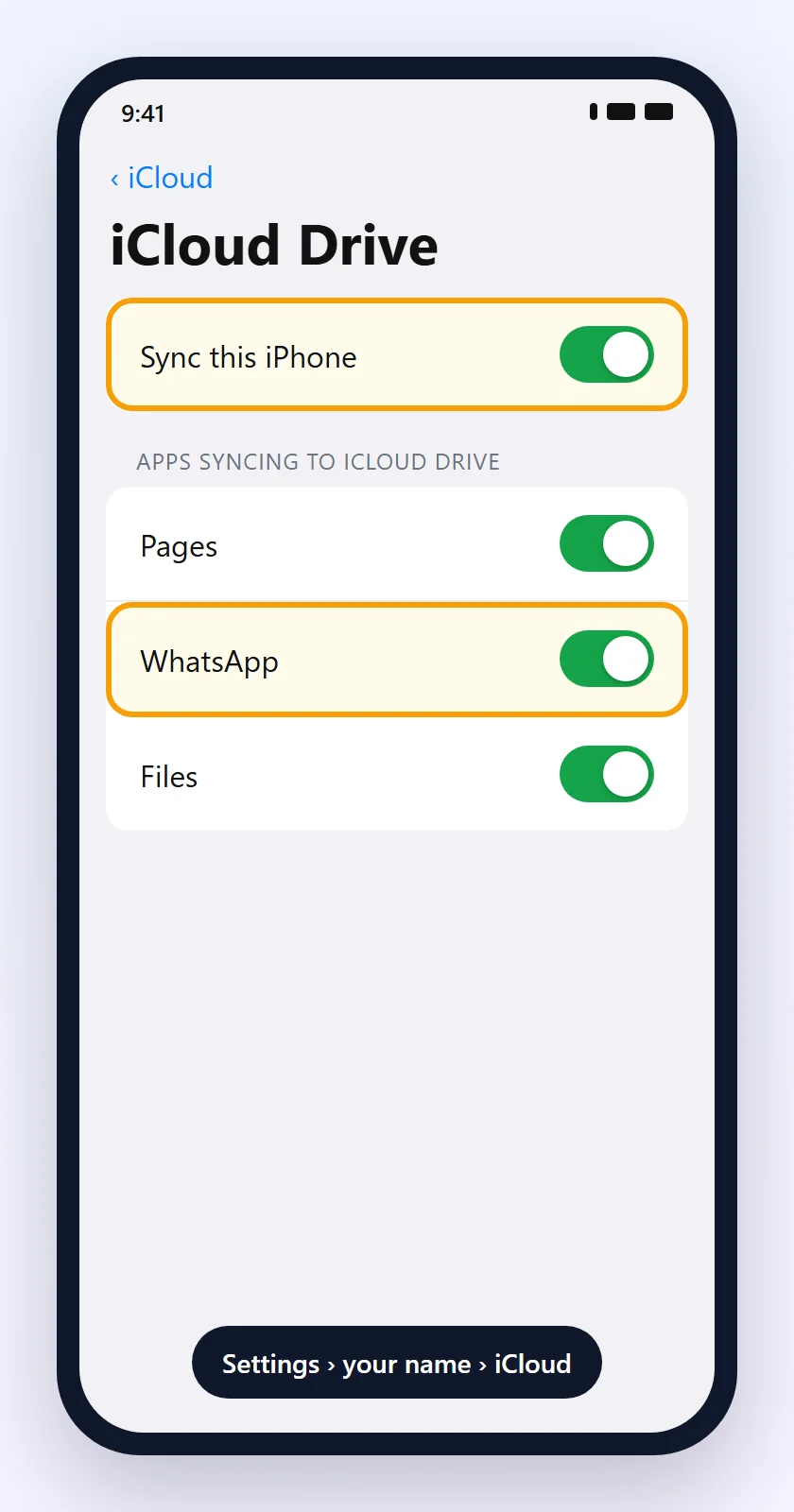
- Open Settings › [your name] › iCloud › iCloud Drive.
- Turn on Sync this iPhone.
- Under Apps Syncing to iCloud Drive, turn on WhatsApp.
- If everything was already on: turn off Sync this iPhone, wait 5 to 10 minutes, turn it back on, wait another 5 to 10 minutes and restart your iPhone.
8Network, iOS and restart
Use when: iCloud has space and iCloud Drive is on, but the backup won't finish.
- Stay on stable Wi-Fi. Switching networks during the backup makes it time out.
- Update your iPhone in Settings › General › Software Update.
- Close WhatsApp (swipe the app up in the app switcher) and open it again.
- Keep the iPhone charging and restart it before trying.
- Last resort: sign out of iCloud and back in. This affects other apps, so leave it for last.
Fixes for Android and iPhone
9Update WhatsApp and your system
Use when: the app hasn't been updated in a long time.
Older versions of WhatsApp have backup bugs that have already been fixed. Update from the Play Store or App Store and update your phone's system too. See how to update apps safely.
10Free up space on your phone
Use when: your phone's storage is full.
Before uploading to the cloud, WhatsApp prepares the backup on the phone itself. Without free space, it can't. Keep at least the size of the backup free.
Full guides: Android out of storage and iPhone out of storage.
11Encrypted backup: I forgot the password or key
Use when: WhatsApp asks for a password, 64-digit key or passkey to restore.
An end-to-end encrypted backup only opens with the password, 64-digit key or passkey you created.
- Without the password, the backup can't be opened. WhatsApp can't send you a copy, reset it or restore it for you.
- Turning off encryption or creating a new password doesn't unlock the old backup.
- If you still use WhatsApp on your phone, you can change the password in Settings › Chats › Chat backup › End-to-end encrypted backup. This applies to future backups.
Tip: store the password or key in a password manager. Without it, the backup is inaccessible forever.
12I can't restore the backup
Use when: you reinstalled WhatsApp and it didn't find the backup, or restoring fails.
To restore, all of these must be true:
- Same phone number used for the backup.
- Same account: the same Google Account (Android) or Apple ID (iPhone).
- Same system: an Android backup doesn't restore on iPhone, and vice versa. To switch systems, use the chat transfer feature.
- Recent backup: backups older than 120 days may not be restorable.
- Free space on the phone larger than the backup.
- Uninstall WhatsApp and install it again from the official store.
- Verify your number and tap Restore (on iPhone, Restore Chat History).
- Keep the app open, on Wi-Fi and charging. Messages come back first; media keeps restoring in the background.
Don't tap "Skip" if you still want your old chats. Skipping the media restore means losing old photos and videos for good.
Messages not sending either? See WhatsApp not sending messages.
Backup error messages and what to do
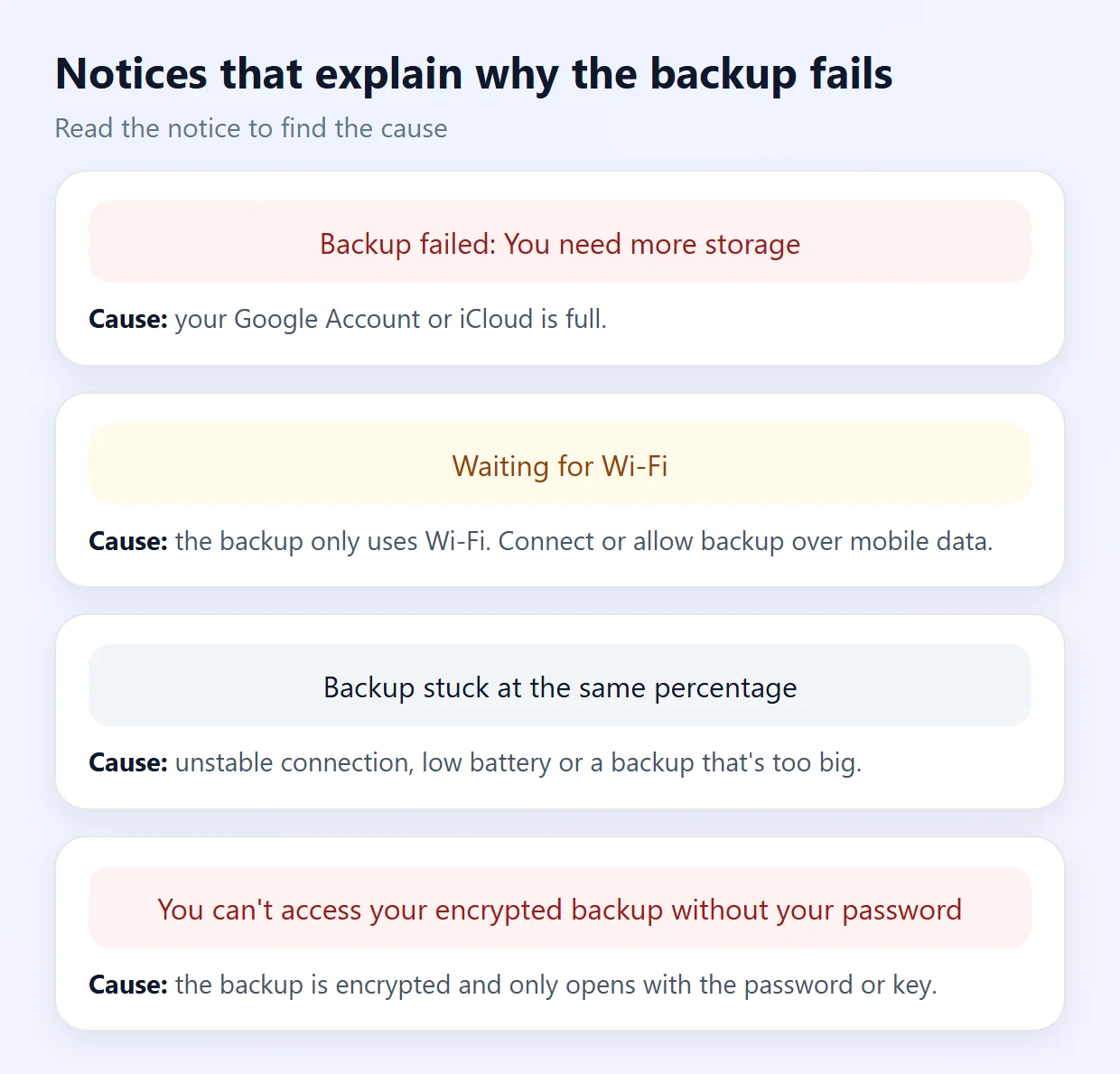
| Notice | Cause | What to do |
|---|---|---|
| Backup failed: You need more storage | Google Account or iCloud is full. | Step 2 or step 6. |
| Waiting for Wi-Fi | Backup set to Wi-Fi only. | Connect to Wi-Fi or allow mobile data (step 1). |
| Unable to access your account | Google Account not synced or missing permission. | Step 4. |
| Progress bar stuck | Unstable network, low battery or large backup. | Step 5. |
| Password or key request | Encrypted backup. | Step 11. |
| Couldn't restore your chat history | Different number, account or system, or a corrupted backup. | Step 12. |
How to avoid losing your chats
- Keep automatic backup on (daily or weekly) and check the date now and then.
- Keep free space in your Google Account or iCloud.
- Leave out videos if they aren't essential: the backup gets much smaller and faster.
- Store your encrypted backup password somewhere safe.
- Before switching phones, make a manual backup and check the date.
- Also make a full phone backup for photos and other apps.
Nothing worked? Contact official WhatsApp support
- Open WhatsApp and go to Settings (Android: ⋮ › Settings).
- Tap Help (or "Help and feedback") and then Contact us.
- Say whether you use Android or iPhone, the notice you see, the backup size and what you've already tried. Attach screenshots.
Support can't recover chats without a backup or unlock encrypted backups. The reply arrives in the app or by email from an address ending in @support.whatsapp.com.
Frequently asked questions
Why won't my WhatsApp backup finish?
The most common causes are a full Google Account or iCloud, an unstable internet connection, a backup that's too big because of videos and account problems. Free up space, use stable Wi-Fi, stop including videos and try again.
What should I do when my WhatsApp backup is stuck?
Restart your phone, keep it charging, force stop WhatsApp, switch networks and make the backup smaller. If it reached 100% and won't finish, wait a few hours: the upload continues in the background.
Does the WhatsApp backup use Google Drive storage?
Yes. The backup uses your Google Account storage, shared with Gmail and Google Photos. If the account is full, the backup fails.
How do I back up WhatsApp without Wi-Fi?
On the Chat backup screen, turn on "Back up over mobile data". The backup can use several GB of your data plan.
How do I see the date of my last WhatsApp backup?
Go to Settings › Chats › Chat backup. The screen shows the date, time and size of the last backup.
Why won't my iPhone back up to iCloud?
Usually iCloud is full, iCloud Drive is off or WhatsApp isn't in the list of syncing apps. Check Settings › your name › iCloud › iCloud Drive.
I forgot my encrypted backup password. Can I recover it?
No. Without the password, 64-digit key or passkey, the encrypted backup can't be opened, not even by WhatsApp.
Can I restore an Android backup on an iPhone?
Not through the backup. Google Drive backups only restore on Android and iCloud backups only on iPhone. To switch systems, use the official chat transfer feature.
Does a new backup delete the previous one?
Yes. There's only one backup per number or account. If you lost chats, don't make a new backup before trying to restore the old one.
Does WhatsApp store my chats on its servers?
No. Chats are only on your phone and in the backup you make to Google or iCloud. Without a backup, they can't be recovered.
Related content
More practical solutions in Apps.

App Keeps Crashing: How to Fix It
Learn how to fix apps that keep crashing on Android or iPhone by checking updates, storage, permissions, and possible system issues.
 15 minutes
Instagram Won't Load: How to Fix App Problems
Learn the identify problems of connection, cache, update and instabilidades when the Instagram won't load the feed, stories, reels or mensagens.
10 minutes

Ride-Hailing App Can't Find a Driver: What to Try
Learn why ride-hailing apps may take longer to find a driver and what alternatives can help you avoid missing important appointments.
10 minutes
Sources consulted
- WhatsApp Help Center: How to back up your chat history
- WhatsApp Help Center: Can't back up or restore your chat history
- WhatsApp Help Center: How to restore your chat history
- WhatsApp Help Center: About end-to-end encrypted backup
The screens in this guide are illustrations created by Fixfy to show the menu paths. WhatsApp is a trademark of Meta Platforms; Fixfy is not affiliated with the company.