

 Internet
 10 fixes
Quick answer: what to do now
- Close the tabs you aren't using and turn on Memory Saver (Chrome) or Sleeping tabs (Edge).
- Open the browser's task manager (Shift + Esc in Chrome) and see what's using the most.
- Turn off extensions you don't use. One bad extension slows everything down.
- Update the browser and restart it.
- Still slow? Reset Chrome or refresh Firefox: passwords and bookmarks are kept.
Which one is your case?
Slow browser: 10 fixes
- Too many open tabsEach tab uses memory, even when idle.Free up memory →
- Heavy extensionsThey run on every page, all the time.Check extensions →
- Outdated browserOld versions are slower and less secure.Update →
- Graphics problemsOld video driver or faulty acceleration.Adjust acceleration →
- Malware or adwareUnwanted programs inject ads.Scan for malware →
- Messed-up settingsChanged by programs or by mistake.Reset →
1Close tabs and turn on Memory Saver
Use when: the browser gets slow after being open for a while or with many tabs.
Google recommends closing tabs you aren't using (Ctrl + W closes the current tab). Browsers can also put idle tabs to sleep on their own:
Chrome
Settings › PerformanceTurn on Memory Saver and pick Moderate, Balanced (recommended) or Maximum. Sites that must keep running go under “Always keep these sites active”.
Edge
edge://settings/systemSleeping tabs puts background tabs to sleep after 2 hours. You can shorten that time on the same page.
Firefox
Menu › SettingsMozilla simply recommends keeping fewer tabs open, since each one uses memory.
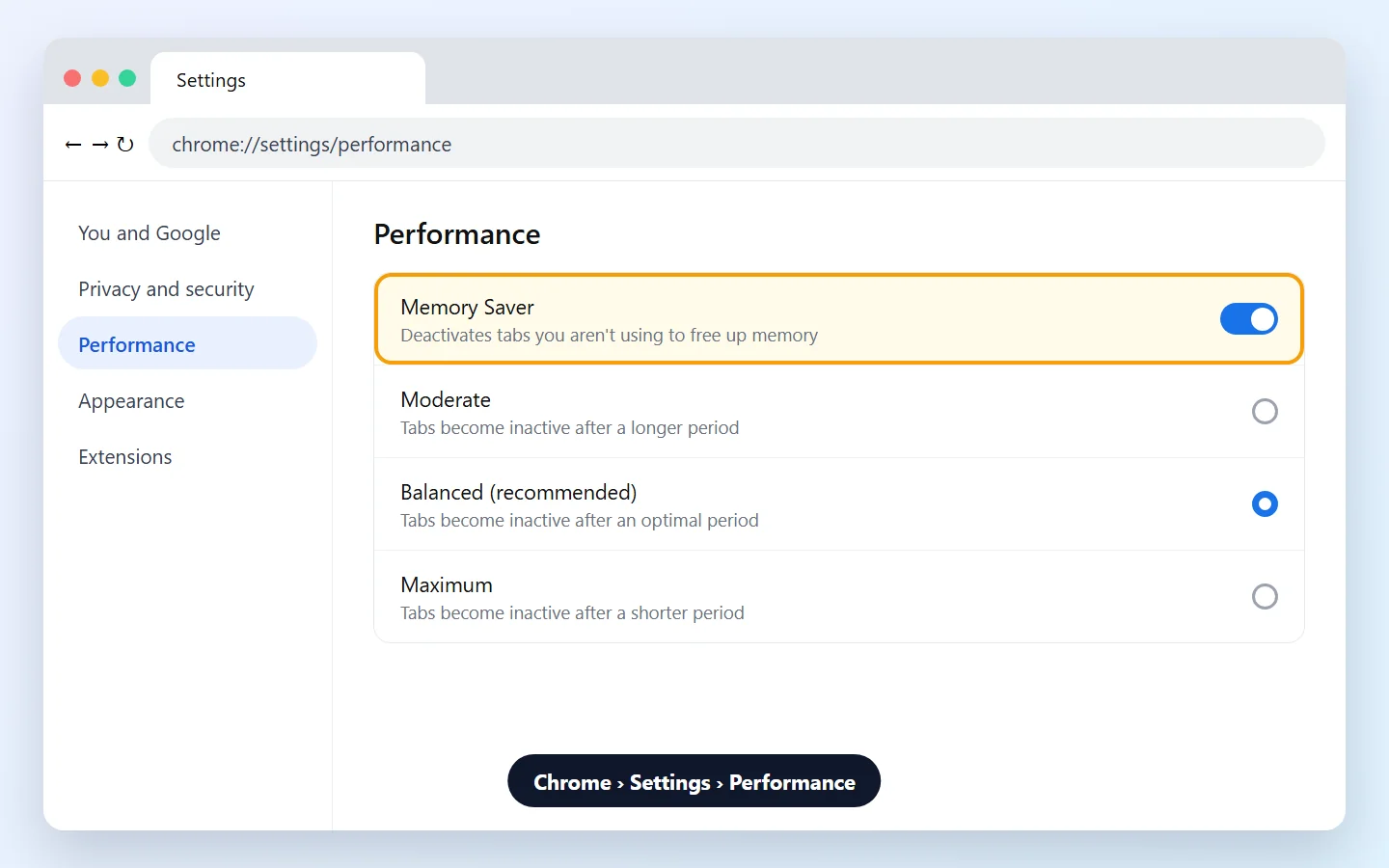
When you go back to a sleeping tab, the page reloads. That's normal.
2Use the browser's task manager
Use when: the computer heats up, the fan speeds up, or one page freezes the others.
The task manager shows how much memory and CPU each tab and extension uses, so you find the culprit instead of guessing.
Chrome
More › More tools › Task managerOr press Shift + Esc. Click Memory to sort, select the item using the most and click End process.
Firefox
about:processesType the address in the bar to open the Firefox Task Manager, with the memory and CPU use of each tab and extension.
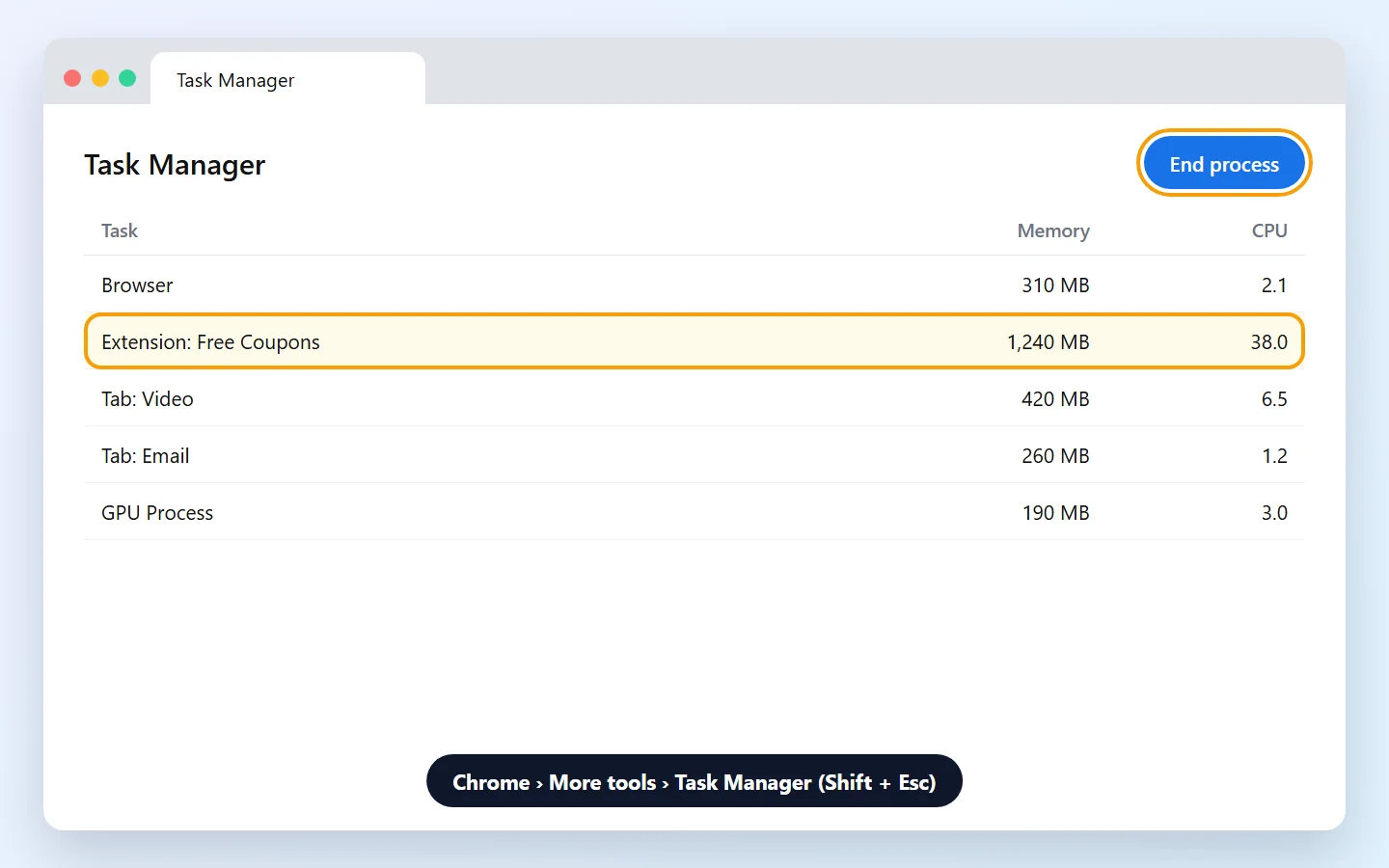
Ending a tab's process discards anything unsaved in it, like text typed into a form.
3Turn off extensions you don't use
Use when: the browser got slow after you installed something, or the task manager pointed to an extension.
Chrome
More › Extensions › Manage ExtensionsTurn off or remove the ones you don't recognize or don't use.
Firefox
Help › Troubleshoot ModeThis mode opens Firefox with extensions turned off. If it's fast, an extension is to blame: turn them back on one at a time to find which.
In Chrome and Edge, a quick test is to open an Incognito window (InPrivate in Edge): extensions are usually off there. If pages load fast in it, suspect your extensions.
4Update the browser
Google and Mozilla list updating as one of the first fixes for a slow browser.
Chrome
More › Help › About Google ChromeChrome checks for updates on its own. Click Relaunch to finish.
Firefox
Menu › Help › About FirefoxThe window checks for and downloads the latest version. Restart Firefox to apply it.
5Clear the cache and cookies
Use when: one specific site is slow, loads halfway or shows old content.
- Chrome: press Ctrl + Shift + Delete, check Cached images and files and, if you want, Cookies and other site data.
- Edge and Firefox: the same shortcut opens the clear browsing data window.
Deleting cookies signs you out of most sites. If only one site has the problem, clear just that site's data.
6Adjust hardware acceleration and update the video driver
Use when: videos stutter, scrolling is choppy or the screen flickers.
Hardware acceleration uses the graphics card to draw pages. Mozilla recommends keeping it on and keeping the graphics driver updated: on Windows, through Windows Update or the maker's site (Intel, AMD or NVIDIA).
- Firefox: Settings › General › Performance. If the option is off and your driver is up to date, turn it on.
- Chrome: Settings › System › Use graphics acceleration when available. If problems started after turning it on, turn it off to test and relaunch.
7Block ads and trackers
Ads, autoplay videos and trackers make pages heavier. Mozilla suggests Firefox's Enhanced Tracking Protection, on by default, and mentions lightweight content blockers such as uBlock Origin, which uses little memory.
In Edge, Tracking prevention is under Settings › Privacy, search, and services.
Only install extensions from the browser's official store. Unknown “coupon” or “speed-up” extensions are usually the problem, not the fix.
8Scan for malware and unwanted programs
Use when: pop-ups appear, your homepage or search engine changed on their own, or toolbars showed up.
- On Windows, run a full scan with Windows Security.
- Google advises removing unwanted programs from your computer: check Settings › Apps and uninstall what you didn't install.
See also how to remove browser pop-ups and what to do about a computer with a virus.
9Reset Chrome or refresh Firefox
Use when: nothing above helped, or a program changed your settings.
Chrome
Settings › Reset settingsClick Restore settings to their original defaults › Reset settings. Passwords, bookmarks and history are kept; extensions are turned off.
Firefox
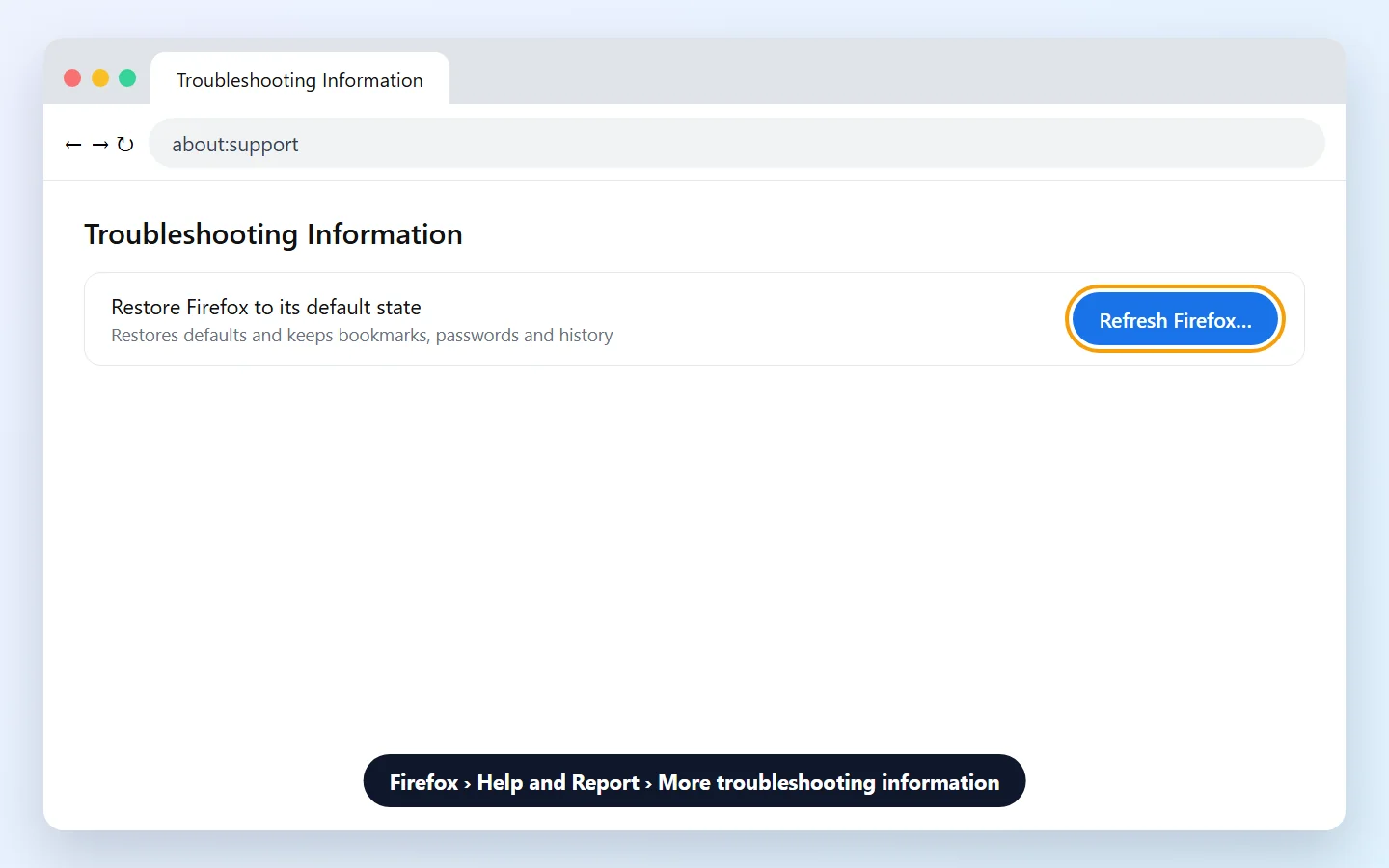
Help › More troubleshooting informationClick Refresh Firefox…. Bookmarks, passwords and history are kept; extensions and customizations are removed.
10Check whether it's the internet or the computer
If the browser opens fast but pages take long to load, the connection may be the problem. If the whole computer is slow, the browser just feels it.
- Try another site and another device on the same network. If everything is slow, see slow Wi-Fi. If it's just one site, see website not opening.
- Close other heavy programs. Google and Mozilla point out that other apps compete for the same memory.
- Restart the computer. If it freezes in everything, see computer freezing.
Symptom and what to do
| Symptom | Likely cause | What to do |
|---|---|---|
| Slow with many tabs | Low memory | Memory Saver (step 1) |
| Loud fan and freezing | Heavy tab or extension | Task manager (step 2) |
| Slow after installing something | Extension | Turn off extensions (step 3) |
| Choppy video and scrolling | Graphics | Acceleration and driver (step 6) |
| Pop-ups and changed search engine | Adware | Scan for malware (step 8) |
| Pages slow, everything else fine | Internet | Test the connection (step 10) |
Frequently asked questions
Why is my browser so slow?
The most common causes are too many tabs, heavy extensions, an outdated browser, graphics problems and unwanted programs. The browser's task manager shows what's using the most.
How do I make Chrome faster?
Close tabs, turn on Memory Saver, remove extensions you don't use, update Chrome and, if nothing helps, reset its settings.
Why does Chrome use so much memory?
Chrome runs tabs and extensions in separate processes. That makes it more stable, but adds up to a lot of memory with many tabs open. Memory Saver frees memory from idle tabs.
Does clearing the cache make the browser faster?
It helps when one specific site loads wrong or slowly. In general the cache exists to speed things up: right after clearing it, sites may open a bit more slowly.
Do extensions slow down the browser?
Yes. Many run on every page you open. Keep only the ones you use and prefer well-known extensions from the official store.
Does resetting Chrome delete passwords and bookmarks?
No. According to Google, passwords and bookmarks are kept. The reset turns off extensions and returns the startup page, search engine and other settings to their defaults.
Does refreshing Firefox delete my data?
Bookmarks, history and passwords are kept. Extensions, themes and customizations are removed.
What are Sleeping tabs in Edge?
It's an Edge feature that puts background tabs to sleep after a while (2 hours by default), freeing memory and CPU.
Do “cleaner” programs make the browser faster?
You don't need them. The steps in this guide only use built-in browser and Windows features. Unknown cleaner programs can install adware.
Will switching browsers fix it?
Sometimes, but the cause often comes along: too many tabs, extensions, slow internet or a computer with little memory. Try the steps before switching.
Related content
More practical solutions in Internet.
 Wi-Fi
Forgot your Wi-Fi password: how to find or change it
Learn safe ways to find the Wi-Fi network password on authorized devices or change the password directly on the router to regain access.
 10 minutes
Internet keeps disconnecting: how to stabilize the connection
Learn to identify the most common causes of frequent internet disconnections, improve Wi-Fi stability, and know when to contact the provider.
15 minutes
Red Light on Router: What It Means
Learn the most common causes of a red light on a router or modem and how to determine whether the problem is with your local network or internet provider.
10 minutes
Sources
- Google Chrome Help: Speed up Google Chrome
- Google Chrome Help: Customize Chrome performance
- Google Chrome Help: Delete browsing data
- Google Chrome Help: Reset Chrome settings
- Google Chrome Help: Update Google Chrome
- Microsoft Support: Performance features in Microsoft Edge
- Mozilla Support: Quick fixes if your Firefox slows down
- Mozilla Support: Firefox uses too much memory or CPU
- Mozilla Support: Refresh Firefox
The screens in this guide are illustrations made by Fixfy. Menu names may vary by browser and system version.